Site speed isn’t just a nice-to-have. Visitors bounce from slow pages, and search engines use page experience signals — Google’s Core Web Vitals — as ranking factors. The good news: most WordPress sites are slow for fixable reasons, and you don’t need to be a developer to fix them.
Work through these twelve optimizations in order.
1. Pick fast hosting
Everything starts here. No plugin can fully compensate for a slow, overcrowded shared server. If your Time to First Byte is sluggish, your host is the bottleneck.
For a detailed breakdown, see our Best WordPress Hosting for Beginners (2026 Compared) guide. The short version: budget shared plans are fine for new blogs, but if your site has outgrown them, moving to cloud hosting like Cloudways or managed hosting like Kinsta is often the single biggest speed win available.
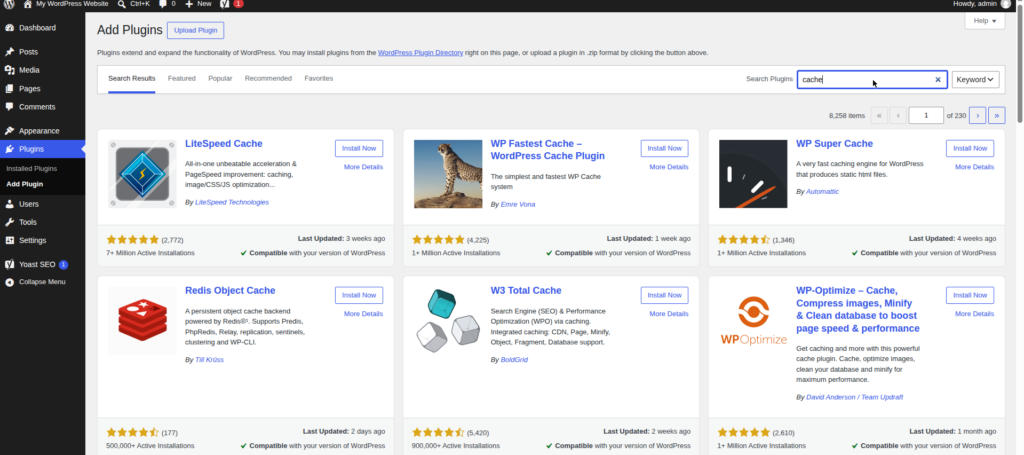
2. Use a caching plugin
Caching saves a ready-made copy of your pages so WordPress doesn’t have to rebuild them from scratch for every visitor. It’s the highest-impact plugin you can install.
Good options include:
- WP Rocket — the most popular premium caching plugin, known for working well with default settings.
- FlyingPress — a newer premium option praised for strong performance results with minimal configuration. FlyingPress pays a 20% recurring commission, which keeps reviews like this free.
- LiteSpeed Cache — free, and excellent if your host runs LiteSpeed servers (many do).
Pick one caching plugin and stick with it. Running two caching plugins at once causes conflicts, not extra speed.
3. Optimize your images
Images are usually the heaviest part of a page. Three habits fix most of it:
- Compress every image before or after upload. Plugins like ShortPixel or Imagify compress automatically.
- Use WebP format, which is significantly smaller than JPEG or PNG at similar quality. Most compression plugins can convert on the fly.
- Lazy load images so below-the-fold images only load when the visitor scrolls to them. WordPress does this by default for images since version 5.5, so check it’s working rather than adding another plugin for it.
Also, resize images to the dimensions they’ll actually display at. Uploading a 4000-pixel-wide photo to show at 800 pixels wastes bandwidth on every visit.
4. Use a CDN
A content delivery network stores copies of your static files (images, CSS, JavaScript) on servers around the world, so visitors download them from a nearby location instead of your single origin server.
- Cloudflare offers a generous free tier that’s enough for most blogs. Sign up, point your domain’s nameservers at Cloudflare, and enable their basic caching.
- BunnyCDN is a low-cost paid alternative popular with performance-focused site owners.
A CDN also takes load off your origin server, which helps during traffic spikes.
5. Use a lightweight theme
Bloated multipurpose themes load dozens of scripts and styles your site never uses. A lightweight theme loads only what it needs.
- Astra, GeneratePress, and Kadence — all fast, all well-maintained, all with solid free versions. (Astra also runs a 30% affiliate program, for the record.) Avoid themes that bundle page builders, sliders, and demo content you’ll never touch; every unused feature is weight your visitors download.
6. Keep your plugin count lean
Every active plugin adds code that runs on your site. That doesn’t mean plugins are bad — WordPress needs them — but each one should earn its place.
Audit yours quarterly: go to Plugins > Installed Plugins and deactivate anything you don’t recognize or no longer use. To find the real culprits, install Query Monitor temporarily — it shows which plugins and database queries are slowing each page load. Delete it when you’re done.
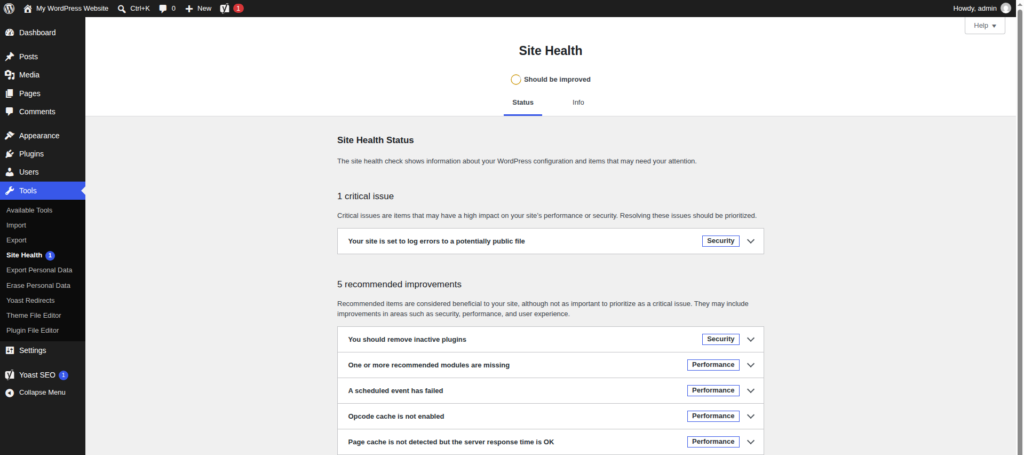
7. Update to PHP 8.2 or 8.3
WordPress runs on PHP, and newer PHP versions are dramatically faster than old ones. If your host still runs PHP 7.4 or 8.0, upgrading to 8.2 or 8.3 can cut page generation time noticeably.
Check your version under Tools > Site Health > Info > Server. Most hosts let you change the PHP version in the hosting control panel with a dropdown — no code required. Update plugins and theme first, then switch, then test your site. If anything breaks, switch back the same way.
8. Enable GZIP/Brotli compression and browser caching
Text compression (GZIP or the newer Brotli) shrinks your HTML, CSS, and JavaScript before they’re sent to visitors — often by 70% or more. Browser caching tells returning visitors’ browsers to reuse files they’ve already downloaded instead of fetching them again.
Most caching plugins (including WP Rocket and FlyingPress) enable both with a checkbox. Cloudflare can also apply compression at the CDN level.
9. Optimize your database
Over time, your WordPress database accumulates revisions, trashed posts, expired transients, and spam comments. WP-Optimize is the standard free plugin for cleaning it: it removes the clutter, optimizes database tables, and can schedule automatic cleanups. Run a backup first (UpdraftPlus is a solid free option), then let it clean.
10. Limit external scripts and fonts
Every third-party script — analytics, ad networks, social widgets, chat bubbles — is a separate request to someone else’s server, and you can’t control how fast they respond. Audit yours:
- Remove widgets and scripts you don’t actively use.
- Host Google Fonts locally instead of loading them from Google’s servers on every page view. Plugins like OMGF do this automatically.
Fewer external requests means fewer things that can slow down or break your page load.
11. Lazy-load videos and iframes
An embedded YouTube video loads a heavy player and multiple scripts even if the visitor never presses play. The fix: show a lightweight thumbnail image that only loads the real player when clicked.
Plugins like WP YouTube Lyte do this for YouTube embeds, and Perfmatters — a lightweight performance plugin (20% recurring commission) — includes lazy loading for iframes plus script management features. WordPress also lazy-loads iframes natively in recent versions, but a dedicated solution gives you the click-to-play thumbnail, which is the bigger win.
12. Measure with PageSpeed Insights and GTmetrix
You can’t improve what you don’t measure. Test your site with:
- PageSpeed Insights (Google’s own tool) — gives lab and real-world field data, plus the Core Web Vitals: LCP (Largest Contentful Paint — how fast the main content appears), INP (Interaction to Next Paint — how quickly the page responds to clicks), and CLS (Cumulative Layout Shift — how much the layout jumps around while loading).
- GTmetrix — detailed waterfall charts showing exactly which files are slow.
Test before you optimize and after each change. Aim for steady improvement, not a perfect 100 — real-world field data matters more than lab scores.
FAQ
What’s a good page load time for WordPress?
Under 2–3 seconds for the full load on a typical connection is a solid target. More important than any single number: your Core Web Vitals (LCP, INP, CLS) should be in the “good” range in Google’s field data, since that’s what search rankings consider.
Will a caching plugin alone fix a slow site?
It helps a lot, but it can’t fix slow hosting, unoptimized 5 MB images, or 40 active plugins. Caching is step 2 for a reason — it multiplies the benefit of everything else, but it’s not a substitute for the fundamentals.
Do I need a CDN for a small blog?
Not strictly, but Cloudflare’s free tier takes minutes to set up and helps with both speed and security. It’s one of the best effort-to-benefit ratios on this list.
Can too many plugins slow down WordPress?
Yes, but the number alone isn’t the whole story — one badly coded plugin can hurt more than ten well-coded ones. Audit with Query Monitor, keep plugins updated, and remove anything you don’t need.
Related guides
- How to Start a WordPress Blog in 2026: Step-by-Step
- Best WordPress Hosting for Beginners (2026 Compared)
- How to Speed Up WordPress: 12 Proven Ways
- 15 Essential WordPress Plugins Every New Site Needs (2026)
- WordPress SEO for Beginners: Complete Setup Guide
Disclosure: this post contains affiliate links. If you buy through them, I may earn a commission at no extra cost to you.