When you first open Plugins > Add New, the sheer number of choices is overwhelming. The temptation is to install lots of plugins “just in case.”
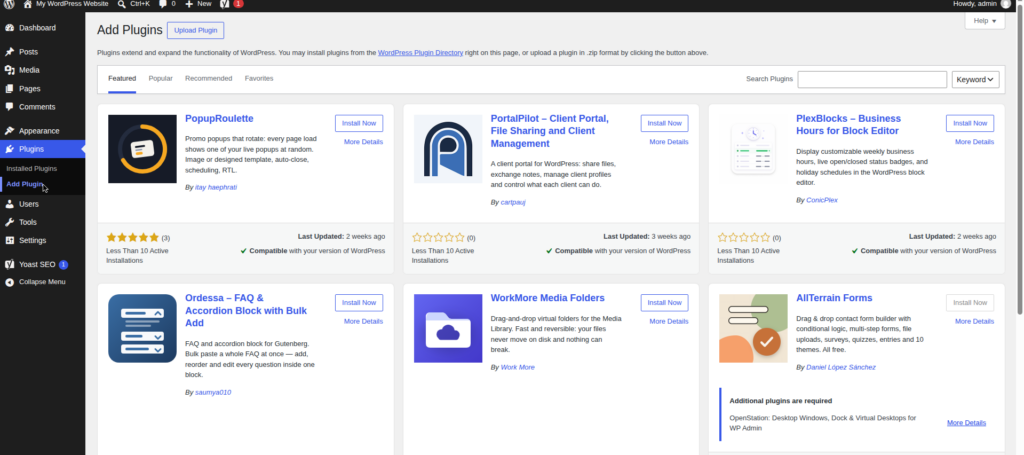
Don’t. The most common beginner mistake is plugin bloat — dozens of plugins until the site slows to a crawl. Every active plugin is code that runs on your site, needs updates, and can potentially break things.
1. Security: Wordfence Security
Verdict: The most popular free firewall for WordPress — a solid first line of defense.
After installing, go to Wordfence > Firewall and click “Optimize the Wordfence Firewall,” then run a first scan under Wordfence > Scan. Turn on email alerts so you hear about problems. (Solid Security, formerly iThemes Security, is a good alternative if you prefer hardening settings over a firewall.)
2. Backups: UpdraftPlus
Verdict: Free, reliable scheduled backups to remote storage — non-negotiable for every site.
Go to Settings > UpdraftPlus Backups > Settings, connect Google Drive or Dropbox (both work on the free plan), and schedule weekly backups of files and the database. Click “Backup Now” for your first one — never rely only on your host’s backups.
3. SEO: Rank Math (or All in One SEO)
Verdict: A powerful free SEO plugin with a friendly setup wizard — the best free option for most beginners. Rank Math
The setup wizard walks you through connecting your site, choosing a title separator, and setting your homepage title template. Afterward, check Rank Math SEO > Dashboard to confirm modules like XML sitemaps are on. See our WordPress SEO for Beginners: Complete Setup Guide for the full walkthrough.
Prefer a simpler interface? All in One SEO is a long-standing, beginner-friendly alternative. All in One SEO (For transparency: All in One SEO pays affiliates a 20% commission — it’s recommended because it’s a genuinely solid product.) Install only one SEO plugin, never both.
4. Caching: LiteSpeed Cache (free) — or premium
Verdict: The best free caching plugin — if your host uses LiteSpeed servers (many shared hosts do).
If your host doesn’t run LiteSpeed, two excellent premium alternatives exist. FlyingPress delivers great results with almost no configuration. (FlyingPress pays a 20% recurring affiliate commission — your price doesn’t change.) WP Rocket is the most popular premium cache plugin, with a “set it and forget it” approach and great docs. Start free and upgrade as your site grows.
5. Image optimization: ShortPixel
Verdict: Compresses images automatically on upload — oversized images are the number-one reason beginner sites are slow.
Go to Settings > ShortPixel and connect your free API key (100 free image credits per month is plenty for a new site). Choose “Lossy” compression and enable WebP conversion.
6. Forms: WPForms Lite
Verdict: The easiest drag-and-drop contact form builder — a contact form takes about five minutes.
Submit a test message to yourself and confirm the notification email arrives before publishing. (Contact Form 7 is a free, no-frills alternative.)
7. Analytics: Site Kit by Google
Verdict: Google’s official plugin connects Search Console, Analytics, and PageSpeed Insights in one dashboard.
Go to Site Kit > Dashboard and follow the connection wizard with your Google account. Make sure Google Analytics 4 gets connected so traffic data starts collecting from day one.
8. Anti-spam: Akismet
Verdict: Stops comment and form spam automatically — essential the moment you enable comments.
Get a free API key under Settings > Akismet (the free “personal” plan asks you to drag the price slider to $0). Once connected, it filters spam silently in the background.
9. Page builder: Elementor (or Gutenberg blocks)
Verdict: The most popular drag-and-drop page builder — worth it if the block editor feels limiting. Elementor
For many sites the built-in block editor is enough, especially with a lightweight theme. If you want finer design control without code, Elementor is the mainstream choice. Pair it with a fast theme like Astra, whose starter templates give a new site a professional design in minutes. (Transparently: Astra pays 30% affiliate commission. Only install a page builder if you’ll actually use it.) Note: block themes use the Site Editor (Appearance > Editor) instead of the old Customizer.
10. Social sharing: AddToAny Share Buttons
Verdict: Simple, lightweight share buttons that won’t slow your site down.
Go to Settings > AddToAny and choose where buttons appear (below posts is the usual spot) and which networks to show. Keep it to four or five networks — a row of 20 looks desperate and adds page weight.
11. Email / newsletter: MailPoet
Verdict: Run a newsletter from inside WordPress — free for up to 1,000 subscribers.
Go to MailPoet > Forms to create a signup form for your sidebar or below posts, then use MailPoet > Emails to design your first newsletter. Building an email list from day one is one of the highest-value things a new site owner can do — you own the list.
12. Maintenance mode: LightStart
Verdict: Shows a clean “coming soon” page while you build — better than a half-finished site.
Go to Settings > LightStart, pick a simple template, add your logo and a short message, and enable it until launch. Disable it the moment you go live — a forgotten maintenance page is an embarrassing way to lose visitors.
13. Redirection: Redirection
Verdict: Manages 301 redirects when you change URLs, so you never break links or lose SEO value.
Go to Tools > Redirection > Add New and enter the old URL and the new one. The plugin also logs 404 errors, helping you spot broken links to fix.
14. Database cleanup: WP-Optimize
Verdict: Keeps your database lean by clearing post revisions, spam comments, and expired transients.
Open WP-Optimize > Database and run the recommended cleanups — it shows exactly what will be removed first. Keep a handful of post revisions, and run it monthly, not daily.
Bonus: Performance extras — Perfmatters
Verdict: A lightweight plugin that disables unnecessary WordPress features (emojis, embeds) to shave off page weight.
This is the bonus pick for fine-tuning speed once your site is live. Go to Settings > Perfmatters and work through the options tab by tab, testing after each change. See our How to Speed Up WordPress: 12 Proven Ways for the full playbook.
A warning about plugin bloat
The rule that matters more than any recommendation above: install only plugins you actually use. Delete anything you’re not using — deactivated plugins still sit in your codebase and can be a security risk.
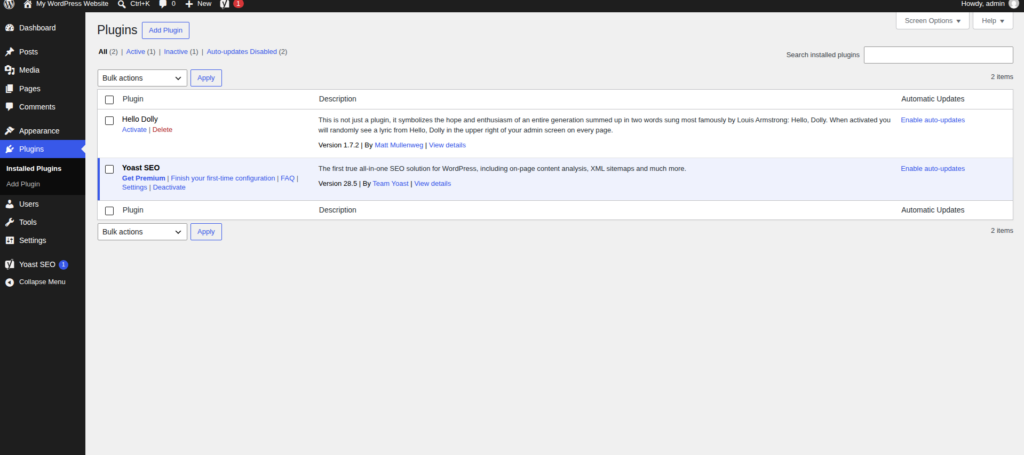
A healthy new site runs roughly 10 to 20 plugins. If you’re past 25, review the list and ask of each one: “What breaks if I remove this?” If the answer is “nothing,” remove it.
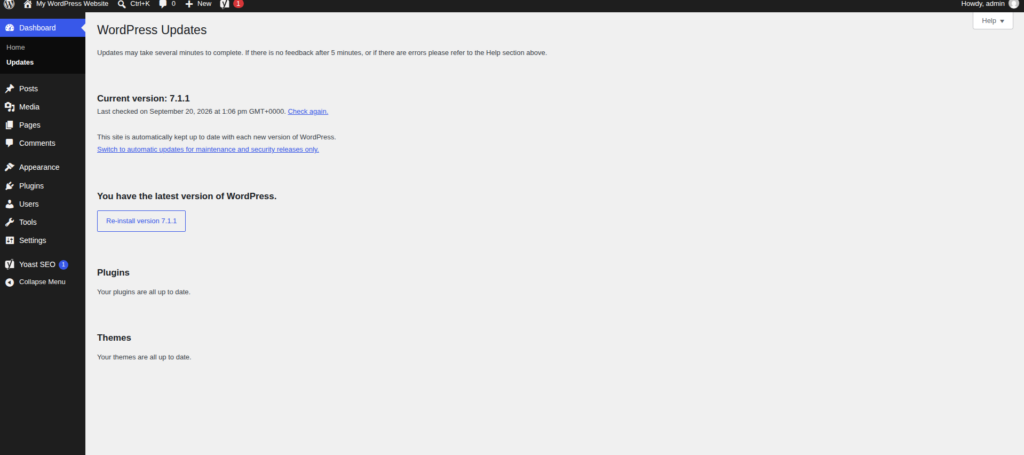
Keep everything updated: visit Dashboard > Updates regularly, or enable auto-updates per plugin under Plugins > Installed Plugins. Check Tools > Site Health occasionally — it flags real problems like outdated PHP.
FAQ
How many plugins is too many?
There’s no magic number — quality matters more than quantity. A well-built site with 20 lightweight plugins will outperform one with 8 bloated ones. Check what each plugin does, whether it’s maintained (look at “Last updated” on wordpress.org), and whether you actually use it.
Are free plugins safe?
Generally yes, if they come from the official WordPress.org repository and are actively maintained. Check the active install count, the rating, and that it was updated within the last few months.
Can I install both Rank Math and All in One SEO?
No. Two SEO plugins cause conflicts — duplicate meta tags, conflicting sitemaps, confusing settings. Pick one.
Do premium caching plugins work on any host?
WP Rocket and FlyingPress work on any standard WordPress host. The exception is LiteSpeed Cache, which needs LiteSpeed servers. Unsure what your server runs? Ask your host’s support.
Related guides
- How to Start a WordPress Blog in 2026: Step-by-Step
- Best WordPress Hosting for Beginners (2026 Compared)
- How to Speed Up WordPress: 12 Proven Ways
- 15 Essential WordPress Plugins Every New Site Needs (2026)
- WordPress SEO for Beginners: Complete Setup Guide
Disclosure: this post contains affiliate links. If you buy through them, I may earn a commission at no extra cost to you.