Think of your WordPress site like a car. Skip the oil changes and it keeps running — right up until it doesn’t, usually at the worst possible moment. Websites are the same: skip maintenance for a few months and you end up with a hacked login page, a contact form that silently stopped working, or a backup that turns out to be from 2023.
The stakes are real. 31% of hacked WordPress sites in 2025 were compromised through outdated plugins (SQ Magazine / Hostinger data), and security researchers logged 11,334 new WordPress vulnerabilities last year alone (Patchstack 2026 report). Most of those hacks didn’t target anyone in particular — they targeted unmaintained sites.
The fix is one focused session a month, roughly 30–60 minutes. Below is the exact checklist I run through, in the order I run it, with the free tools for each step. Do it monthly and your site stays fast, secure, and recoverable.
The Quick Checklist
| # | Task | Time |
|---|---|---|
| 1 | Back up your entire site (files + database) | 5 min |
| 2 | Install all pending updates (core, plugins, themes) | 5 min |
| 3 | Turn on auto-updates everywhere | 3 min |
| 4 | Run a full security scan | 5 min |
| 5 | Check Site Health and fix the red flags | 5 min |
| 6 | Delete plugins and themes you don’t use | 5 min |
| 7 | Clear spam comments and optimize the database | 5 min |
| 8 | Hunt down broken links | 5 min |
| 9 | Test your key pages and forms | 5 min |
| 10 | Check your site speed | 5 min |
| 11 | Review user accounts and two-factor authentication | 3 min |
| 12 | Confirm your SSL certificate is valid | 2 min |
Task 1: Back Up Your Entire Site First
Do this before anything else. Every other task on this list can change or break something. A fresh backup means any mistake is a 10-minute rollback instead of a disaster.
Use UpdraftPlus (free) if you don’t have a backup system yet:
- Install and activate UpdraftPlus from Plugins → Add Plugin.
- Go to Settings → UpdraftPlus Backups → Settings and connect a remote storage location — Google Drive or Dropbox (both free). Never keep your only backup on the same server as your site; if the server dies, both are gone.
- Set the schedule to daily for the database and weekly for files, and keep at least 2–3 recent backups.
- Click Backup Now, then check your Google Drive/Dropbox to confirm the files actually landed there.
Honest take: the free version of UpdraftPlus covers everything a beginner site needs — scheduled backups, remote storage, one-click restore. UpdraftPlus Premium (from $70/year) adds nice-to-haves like incremental backups and automatic pre-update backups; skip it until your site earns money.
Also check: does your host already make daily backups? Many quality hosts do (it’s one of the things I check in the best WordPress hosting for beginners). That’s a great bonus — but keep your own off-site copy too. Two backups in two places is the rule.
Task 2: Install All Pending Updates
Outdated software is the single most common way WordPress sites get hacked. Updates are also how bugs get fixed and features improve. Go to Dashboard → Updates and install everything pending: WordPress core, plugins, and themes. If an update notes a major version jump for a plugin you depend on (a payment plugin, for example), glance at its changelog first — that’s what your backup from Task 1 is for.
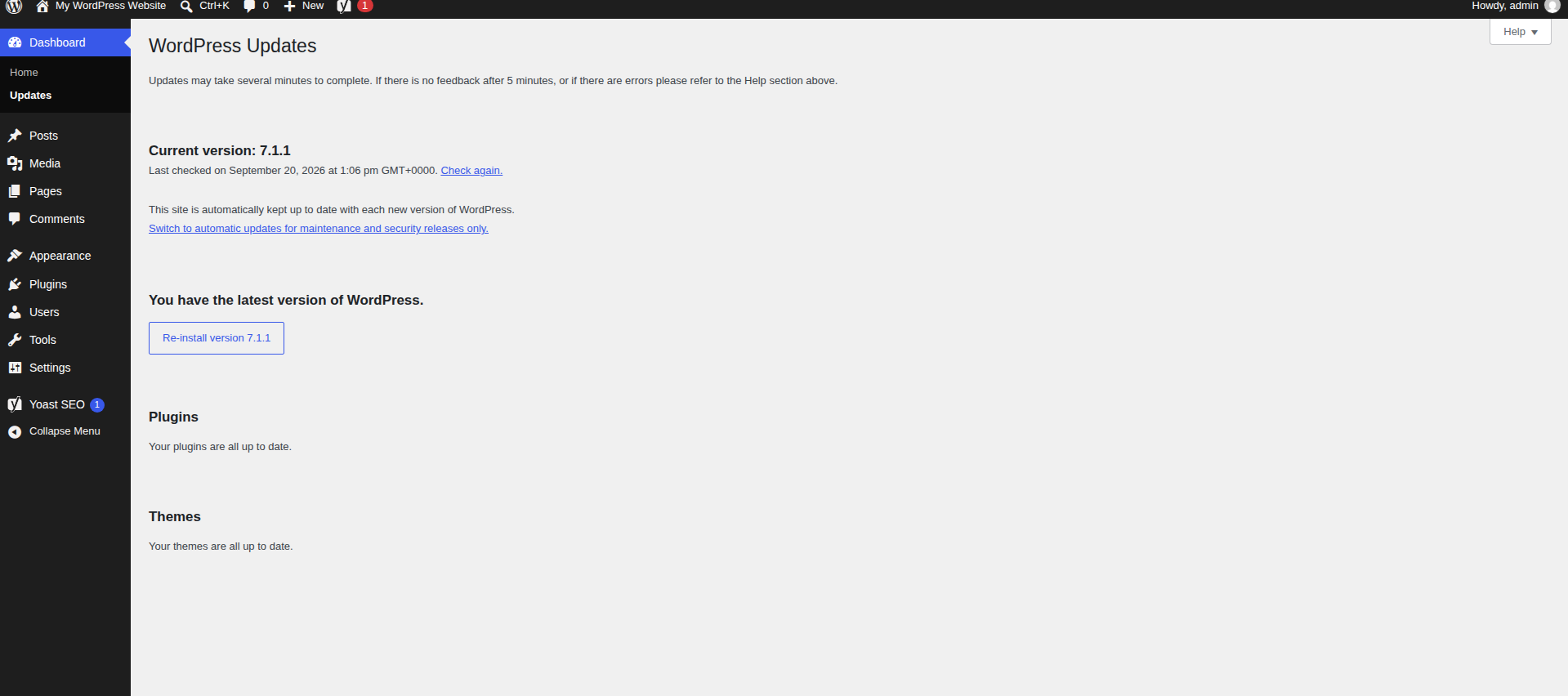
My honest take: update plugins one or two at a time, not all at once. If something breaks, you’ll know exactly which update caused it.
Task 3: Turn On Auto-Updates Everywhere
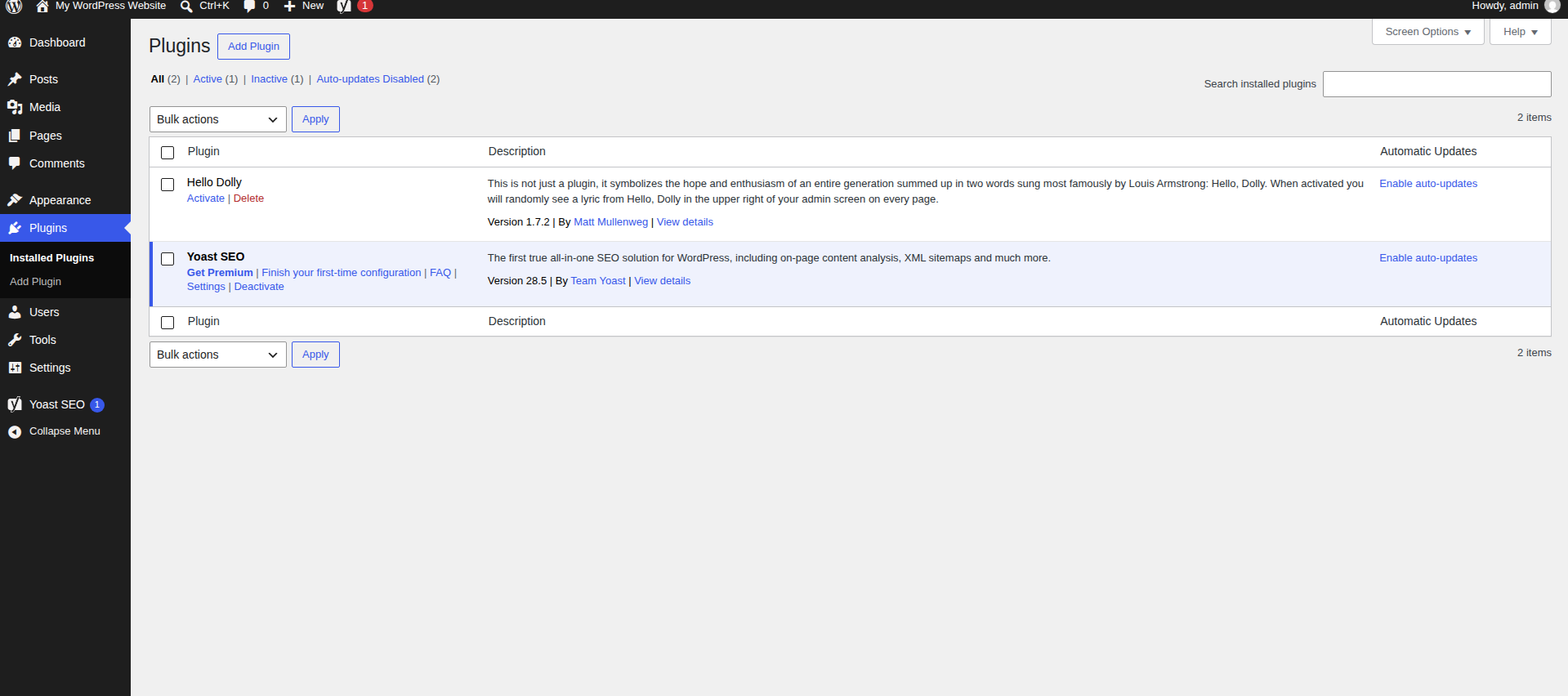
Monthly manual updates are good; automatic updates are better, because the month you forget is the month it matters. In Plugins → Installed Plugins, click Enable auto-updates for every plugin you actively use. In Appearance → Themes, do the same for your active theme. In Dashboard → Updates, make sure WordPress core auto-updates are on for minor security releases.
The one exception: if a plugin is business-critical (your checkout, your booking system), leave it manual and update it deliberately after checking compatibility notes — auto-updates on those are a gamble you don’t need.
Task 4: Run a Full Security Scan
Even with everything updated, run a monthly malware scan — it catches things updates don’t, like files a previous compromise left behind. The free tier of Wordfence (5+ million installs) does a solid full-site scan in a few minutes. While you’re at it, run your URL through Sucuri SiteCheck (free online scanner) to confirm you’re not on any blocklists.
Found our WordPress security guide? That’s the deeper version of this task: firewall, 2FA, and login hardening, all free. If you haven’t set those up yet, this month’s scan is a good reminder.
Task 5: Check Site Health and Fix the Red Flags
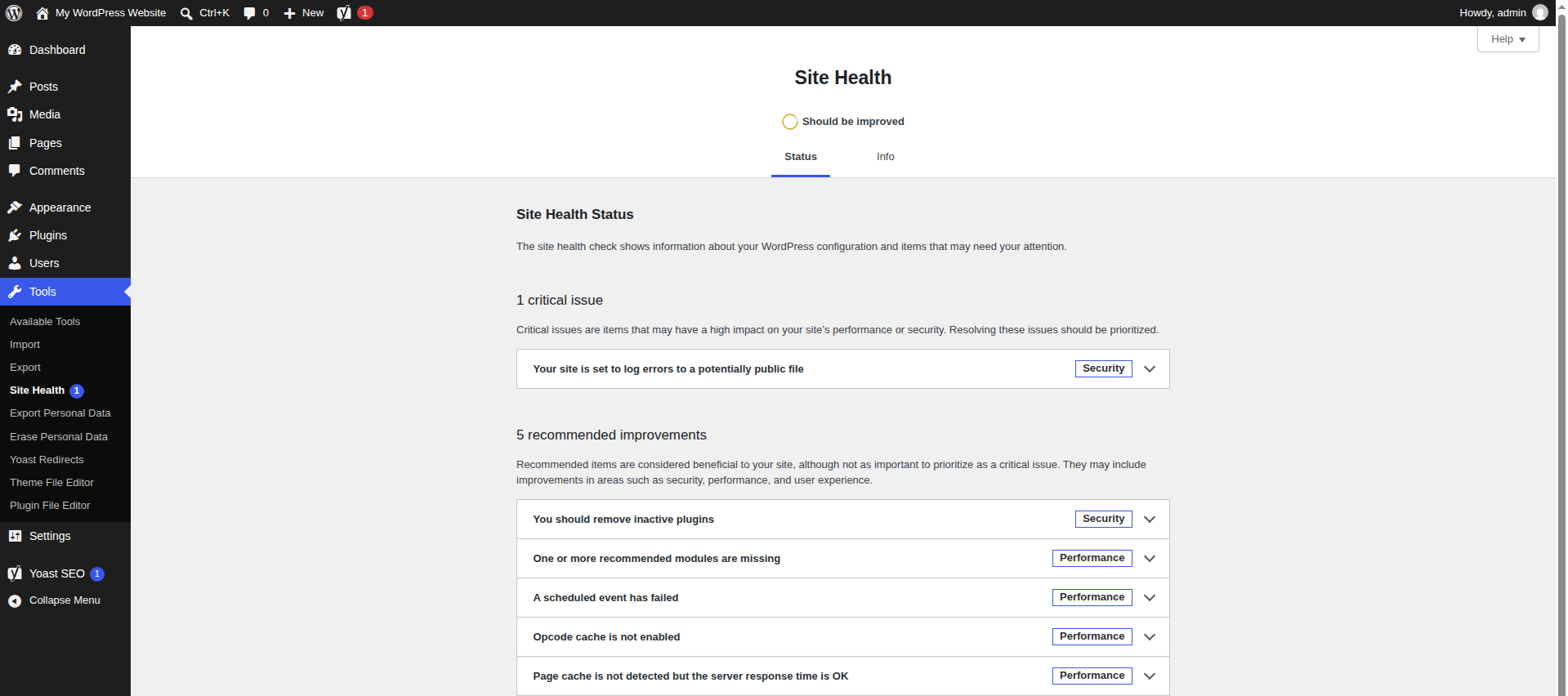
WordPress has a built-in diagnostic tool most beginners never open: Tools → Site Health. It grades your setup and lists specific problems — outdated PHP, missing HTTPS, inactive plugins, failed scheduled events — with plain-English explanations. Aim for “Good” status. Treat every “Critical issue” as a real to-do item, and work through “Recommended improvements” when you have time.
Task 6: Delete Plugins and Themes You Don’t Use
Every installed plugin and theme is a potential entry point — even inactive ones can be exploited. Each month, delete anything you don’t actively use. (Deactivating isn’t enough — delete them.) Keep only your active theme plus one default WordPress theme as a fallback. A lean site is more secure, faster, and easier to update.
Task 7: Clear Spam Comments and Optimize the Database
Two kinds of cruft build up silently:
- Spam comments. If you allow comments, Akismet or your spam filter is catching junk daily. Go to Comments → Spam, verify nothing real is in there, and click Empty Spam. Spam bloats your database and occasionally carries malicious links.
- Database overhead. Post revisions, trashed items, expired transients, and orphaned metadata pile up in your database over time, slowing queries and inflating backups. WP-Optimize (free) cleans all of it safely with one click. Take a backup first (Task 1 — you already did), then run it monthly.
Task 8: Hunt Down Broken Links
Links rot. Pages you link to get deleted, products move, and external sites shut down. Broken links annoy visitors and quietly erode trust — and search engines notice crawl errors too. Two free ways to check:
- The Broken Link Checker plugin scans your posts and pages and lists every link that returns an error. Fix internal links by pointing them at the right page (or a redirect), and replace or remove dead external ones.
- Google Search Console → Pages surfaces crawl errors Google found itself. (If you haven’t connected Search Console yet, do it — it’s free and takes five minutes.)
Task 9: Test Your Key Pages and Forms
This is the task that saves businesses. Open your site in a private/incognito window and actually use it: submit the contact form, click the main call-to-action, load the checkout or booking page. Forms break silently after updates — no error message, no warning, just leads vanishing. Two minutes of clicking beats discovering the problem in a quarterly revenue review.
Task 10: Check Your Site Speed
Run your homepage and one or two key pages through Google PageSpeed Insights (free). You’re looking for changes, not perfection: if your score dropped 20 points since last month, something changed — usually a new plugin, unoptimized images, or a cache that stopped working. For a full walkthrough of the fixes, see our WordPress speed guide.
Task 11: Review User Accounts and Two-Factor Authentication
Go to Users → All Users and audit the list. Remove accounts for people who no longer need access (the freelancer from last year, the old staging account), and demote anyone with Administrator access who doesn’t need it. Then confirm two-factor authentication is active on every remaining admin account — only about a third of WordPress admin accounts use 2FA today, and it’s the single highest-value login protection there is. (Wordfence and Solid Security both include free 2FA.)
Task 12: Confirm Your SSL Certificate Is Valid
Your browser padlock is easy to take for granted until it breaks. Click the padlock icon next to your address bar and check the certificate’s expiry date — or use a free SSL checker online. Most hosts auto-renew Let’s Encrypt certificates, but renewals fail silently more often than you’d think, and an expired certificate shows every visitor a scary “Not secure” warning. If yours expires within 30 days and hasn’t renewed, open a ticket with your host.
Quarterly Bonus Tasks (4× a Year)
Once a quarter, go one level deeper:
- Review your hosting. Is your plan still right for your traffic? Slow host, steep renewals, bad support — switching hosts is a well-worn path, and most good hosts migrate you for free. (SiteGround and Bluehost are the beginner-friendly picks I keep coming back to.)
- Check plugin licenses. Expired premium licenses stop receiving security updates — an expired license is a vulnerability wearing a paid badge. Renew or replace.
- Review your analytics. What’s your traffic doing? Which posts earn it? That’s your content plan writing itself. (Our WordPress SEO guide covers the setup if you haven’t done it.)
- Test a backup restore. A backup you’ve never restored is a backup you don’t have. Restore one to a staging copy or local install once a quarter and confirm it works.
What to Automate (and What Not To)
Automate the boring parts so the monthly session stays short:
- Automate: scheduled off-site backups (UpdraftPlus), plugin/theme auto-updates, security scans, uptime monitoring (a free monitor that texts you when the site goes down is worth its weight in gold).
- Don’t automate: major updates to business-critical plugins, deleting anything, or “one-click fix” tools that change database tables you don’t understand. Those need your eyes.
Keep a Maintenance Log
One spreadsheet, one row per month, columns for each of the 12 tasks. It takes 30 seconds to fill in and answers the only question that matters when something breaks: “what changed recently?” Future you will be grateful.
Frequently Asked Questions
How often should I do WordPress maintenance?
The core tasks (backups, updates, scans) monthly; quick checks (spam, uptime) weekly if you have the habit. The quarterly tasks above go deeper four times a year. Anything less than monthly and problems start compounding.
Do I need to pay for maintenance plugins?
No. Every task in this checklist has a free tool: UpdraftPlus, Wordfence, WP-Optimize, Broken Link Checker, Site Health, PageSpeed Insights. Paid versions add convenience, not capability.
Can my host do maintenance for me?
Partially. Good managed hosts handle backups, SSL renewal, and sometimes updates — but they won’t test your forms, clean your database, or review your users. Maintenance is shared responsibility.
What if an update breaks my site?
Don’t panic. Restore the backup you made in Task 1, then update plugins one at a time to find the culprit. If the same plugin breaks repeatedly, look for an alternative — reliability is a feature.
I don’t have time for this — what are my options?
If maintenance keeps sliding, that’s what WordPress care plans are for — a human does this checklist for you monthly. It’s the one WordPress expense that’s genuinely worth it for busy site owners.
The Bottom Line
WordPress maintenance isn’t glamorous, but it’s the difference between a site that quietly works for years and one that gets hacked, slows down, or loses a month of content. Backup first, update everything, scan monthly, delete what you don’t use, and test the things that earn you money. One focused hour a month — put it on your calendar now.
Sources: Patchstack 2026 WordPress Security Report (11,334 vulnerabilities in 2025); SQ Magazine / Hostinger WordPress Statistics 2026 (31% of hacks via outdated plugins); UpdraftPlus pricing (Premium from $70/year, per 2026 plugin comparisons).
Disclosure: this post contains affiliate links. If you buy through them, I may earn a commission at no extra cost to you.