SEO (search engine optimization) sounds technical, but for a new WordPress site it’s mostly a one-time setup plus a few good habits. This guide walks you through every step in order — from basic settings to writing posts that Google can find and rank.
No coding skills needed. Everything happens in the WordPress dashboard.
Step 1: Let search engines find your site
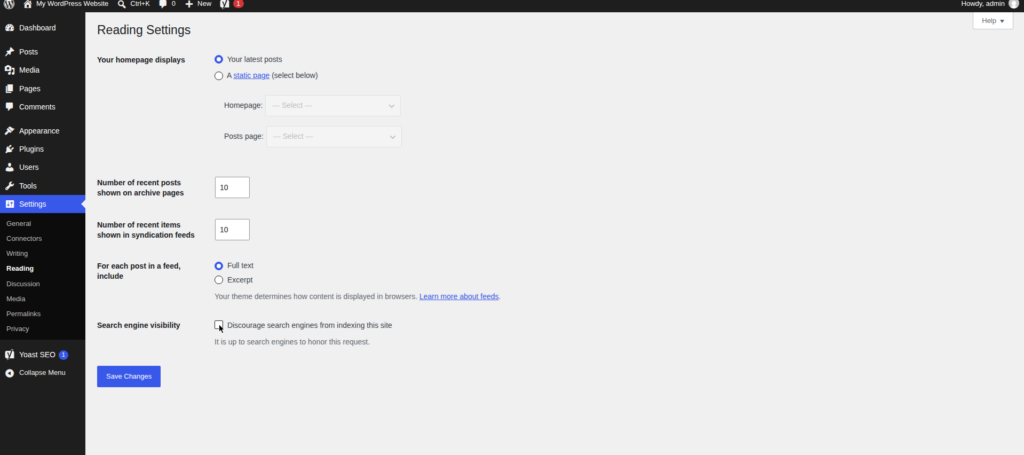
Go to Settings > Reading and make sure “Discourage search engines from indexing this site” is unchecked.
This one checkbox tells Google whether your site exists. Many beginners leave it checked after building their site and wonder why nothing appears in search results. If your site ever goes missing from Google, check this setting first.
Step 2: Set clean permalinks
Go to Settings > Permalinks and select Post name.
This makes URLs look like yoursite.com/my-great-post/ instead of yoursite.com/?p=123 — easier to read, share, and remember. Do this early: changing permalink structure later can break existing links and hurt rankings.
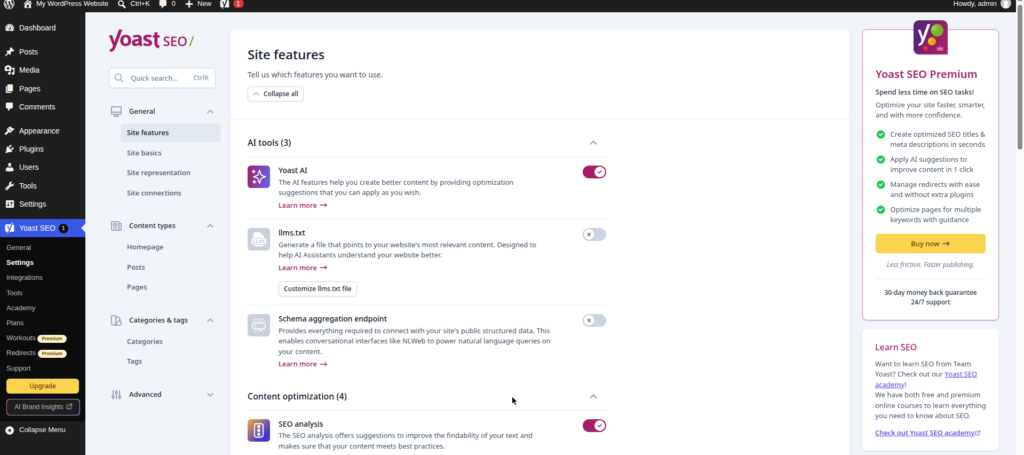
Step 3: Install an SEO plugin and run its wizard
An SEO plugin handles the technical parts of SEO: title tags, meta descriptions, XML sitemaps, and social media previews. The two best options for beginners are Rank Math and All in One SEO. Rank Math All in One SEO
Install just one via Plugins > Add New, activate it, and a setup wizard starts automatically. Here’s what it asks:
- Connect your site. Verifies ownership and can import settings if you’re switching from another SEO plugin.
- Choose a title separator. The character between your post title and site name in search results, like a dash or pipe (“My Post | My Site”). Purely stylistic — no SEO impact.
- Set your homepage title template. How your homepage appears in search results: your site name plus a short description, e.g. “Get Started WP — Beginner WordPress Tutorials”.
- Add your social profiles. Your Facebook, X, Instagram, and other profile URLs, so search engines connect your site to your social presence.
- Enable sitemaps and basic modules. Accept the defaults for XML sitemaps, image SEO, and 404 monitoring.
The wizard takes about five minutes, and you can change every setting later.
Step 4: Check your XML sitemap
An XML sitemap lists all your site’s pages so search engines can discover them. Two things to know:
- WordPress core includes a basic sitemap at
yoursite.com/wp-sitemap.xmlsince version 5.5. It works with no setup. - Your SEO plugin generates a better one, with options like excluding tag archives or adding images. In Rank Math, check Rank Math SEO > Sitemap Settings; in All in One SEO, check All in One SEO > Sitemaps.
Your plugin’s sitemap takes over automatically when active. Open the sitemap URL in your browser once to confirm it loads and lists your pages.
Step 5: Verify your site in Google Search Console
Google Search Console is a free tool showing how your site appears in Google: which queries bring visitors, which pages get clicks, and whether Google has crawling problems. The easiest verification uses your SEO plugin:
- Go to Search Console, sign in with your Google account, and add your site as a property.
- Choose the HTML tag verification method. Google gives you a small
<meta>tag. - In Rank Math, go to Rank Math SEO > General Settings > Webmaster Tools and paste the code into the Google field. In All in One SEO, it’s under All in One SEO > General Settings > Webmaster Tools.
- Save, then click “Verify” back in Search Console.
Once verified, submit your sitemap under Sitemaps in Search Console’s left menu. Google will start crawling and reporting data within a few days.
Step 6: Write SEO-friendly posts
With the technical setup done, SEO becomes a writing habit. For every post:
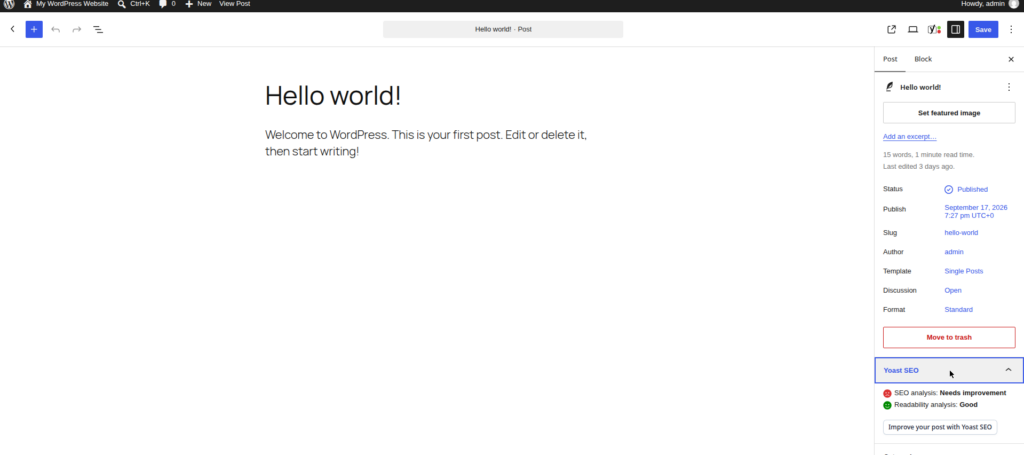
- Pick one focus keyword. The phrase someone would type into Google to find your article, e.g. “how to install wordpress plugins.” Your SEO plugin lets you set one per post and scores how well you target it.
- Use one H1 and multiple H2/H3 headings. The post title is your H1 (added automatically). Break the body into sections with Heading 2 blocks for main sections and Heading 3 for subsections.
- Write a meta description. In the SEO plugin’s meta box below the editor, write a ~150-character summary. It often appears under your title in search results — make it sound worth clicking.
- Add internal links. Link to 2–4 of your own related posts per article. Internal links help Google discover your content and keep readers on your site.
- Fill in image alt text. Give each image descriptive alt text in the block settings, e.g. “WordPress Reading settings page showing the search engine visibility checkbox.”
Don’t obsess over a perfect score in the plugin’s SEO analyzer. A genuinely helpful, well-structured article beats a mediocre one with a 100/100 score.
Step 7: Speed up your site
Site speed is a ranking factor — and slow pages make visitors leave. Cover the basics:
- Install a caching plugin (see our How to Speed Up WordPress: 12 Proven Ways).
- Compress images before or on upload — huge photos are the most common cause of slow pages.
- Don’t install plugins you don’t need (see our 15 Essential WordPress Plugins Every New Site Needs (2026)).
- Check Tools > Site Health for performance warnings.
Run your homepage through Google’s PageSpeed Insights once for a baseline, then re-check after changes.
Step 8: What to avoid
- Keyword stuffing. Repeating your focus keyword unnaturally makes your writing terrible and doesn’t help rankings. Write for humans first.
- Duplicate content. Don’t publish the same article twice or copy large chunks from other sites. If two pages cover the same topic, merge them into one stronger page.
- Thin content. Pages with almost no useful content rarely rank and make your site look low-quality. Every page should answer a real question thoroughly.
Unsure whether a tactic is safe? Ask: “Would I do this if search engines didn’t exist?” If the answer is no, don’t do it.
FAQ
How long does WordPress SEO take to work?
Usually weeks to months for a new site. Google must discover, crawl, and evaluate your pages, and a new domain has no authority yet. Expect the first meaningful search traffic after 2–3 months of consistent publishing — not days.
Do I need to pay for an SEO plugin?
No. The free versions of Rank Math and All in One SEO cover everything a beginner needs: titles, meta descriptions, sitemaps, and basic schema.
Is the built-in WordPress sitemap enough?
It works, but your SEO plugin’s sitemap is better: more control over what’s included, image data, and integration with the plugin’s other settings. When an SEO plugin is active, its sitemap is the one search engines use.
Should I submit every post to Google manually?
No. Once your sitemap is submitted, Google discovers new posts on its own. You can use the URL Inspection tool in Search Console to request indexing for an important page, but it’s not needed for every post.
Related guides
- How to Start a WordPress Blog in 2026: Step-by-Step
- Best WordPress Hosting for Beginners (2026 Compared)
- How to Speed Up WordPress: 12 Proven Ways
- 15 Essential WordPress Plugins Every New Site Needs (2026)
- WordPress SEO for Beginners: Complete Setup Guide
Disclosure: this post contains affiliate links. If you buy through them, I may earn a commission at no extra cost to you.